The GitHub integration enhances Service Architecture Intelligence by enriching your New Relic data with context from your GitHub organization. By connecting your GitHub account, you can import your repositories, teams, and pull request data into New Relic. This additional information strengthens the value of Teams, Catalogs and Scorecards, giving you a more complete and connected view of your engineering work.
Before you begin
Prerequisites:
- You must have either the Organization Manager or Authentication Domain Manager role.
Supported platforms:
- GitHub Cloud
- GitHub Enterprise Cloud (without data residency)
Supported regions: US and EU regions
important
- GitHub Enterprise Server and GitHub Enterprise Cloud with data residency are not supported.
- Installing the integration in GitHub user accounts is not supported. While GitHub allows installing the app at the user level, the sync process will not function, and no data will be imported into New Relic.
- The GitHub integration is not FedRAMP compliant.
What data can be synced
The GitHub integration allows you to selectively choose which data types to import into New Relic, giving you control over what information is synchronized:
Available data types
Repositories and Pull Requests: Import repository and pull request data for better code visibility and deployment tracking
Teams: Import GitHub teams and their membership to enhance team management and ownership mapping
Importante
Team integration conflicts: If teams have already been integrated into New Relic from another source (such as Okta or other Identity Provider), GitHub teams will not be allowed to be fetched and stored to prevent data conflicts. In this case, you can only select repositories and pull request data.
User email visibility requirement: To ensure that team membership is aligned with your GitHub teams, GitHub users will need to have configured their email addresses as public in their GitHub profile settings. Team members with private email configurations will be excluded from the user data synchronization process.
Set up the GitHub integration
Go to one.newrelic.com > + Integration & Agents > GitHub integration.
Select the account where you'd like to have the integration setup.
Select Set up a new integration, and click Continue.
On the Begin integration screen:
a. Click Get started in GitHub to connect your account. The New Relic Observability app opens in the GitHub Marketplace.
b. Complete the app installation within your GitHub organization. After installation, you will be redirected back to the New Relic interface.
c. Select Begin integration again, and click Continue.
d. Select your data preferences: Choose which data types you want to sync:
- Teams + Users: Import GitHub team structures and user information.
- Repositories + Pull Requests: Import repository and pull request data.
- Both: Import all available data types.
e. If you selected Teams + Users, a list of all GitHub teams will be displayed. Select all or a selection of teams to import.
f. Click Start first sync to begin importing your selected data.
g. After you view the Sync started message, click Continue. The Integration status screen will display the count of your selected data types (teams, repositories, etc.), refreshing every 5 seconds. Allow a few minutes for the complete import of all data.
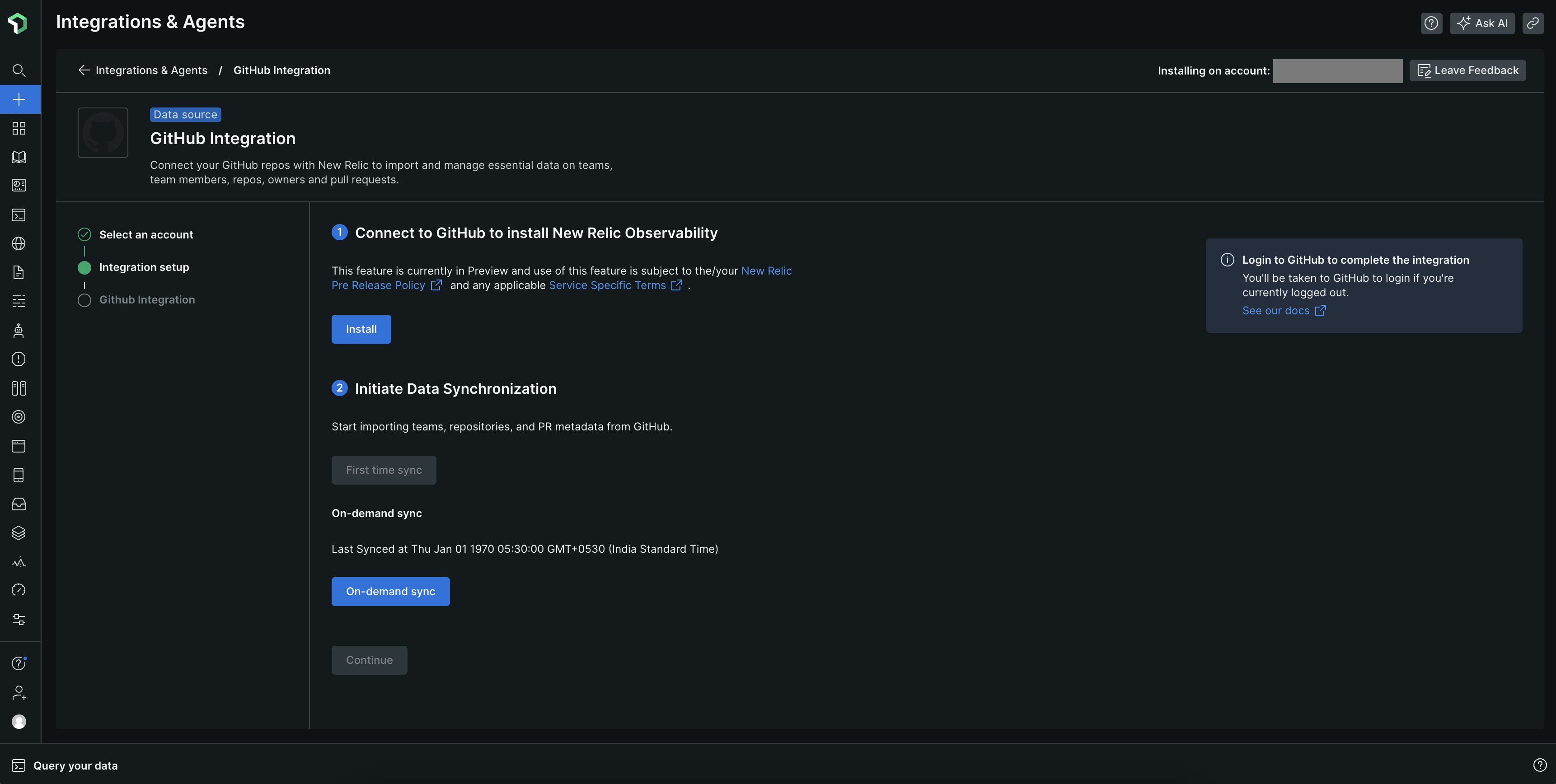
(Optional) On the GitHub integration screen, you can access your imported data:
- Click Go to Teams to view the imported teams on Teams page (if teams were selected during setup).
- Click Go to Repositories to view the imported repositories information on Repositories catalog (if repositories were selected during setup).
Manage your GitHub integration
After setting up your GitHub integration, you can manage it through the New Relic interface. This includes refreshing data, editing configuration, and uninstalling when needed.
Access integration management
Go to one.newrelic.com > + Integration & Agents > GitHub integration.
On the Select an action step, select Manage your organization, and click Continue.
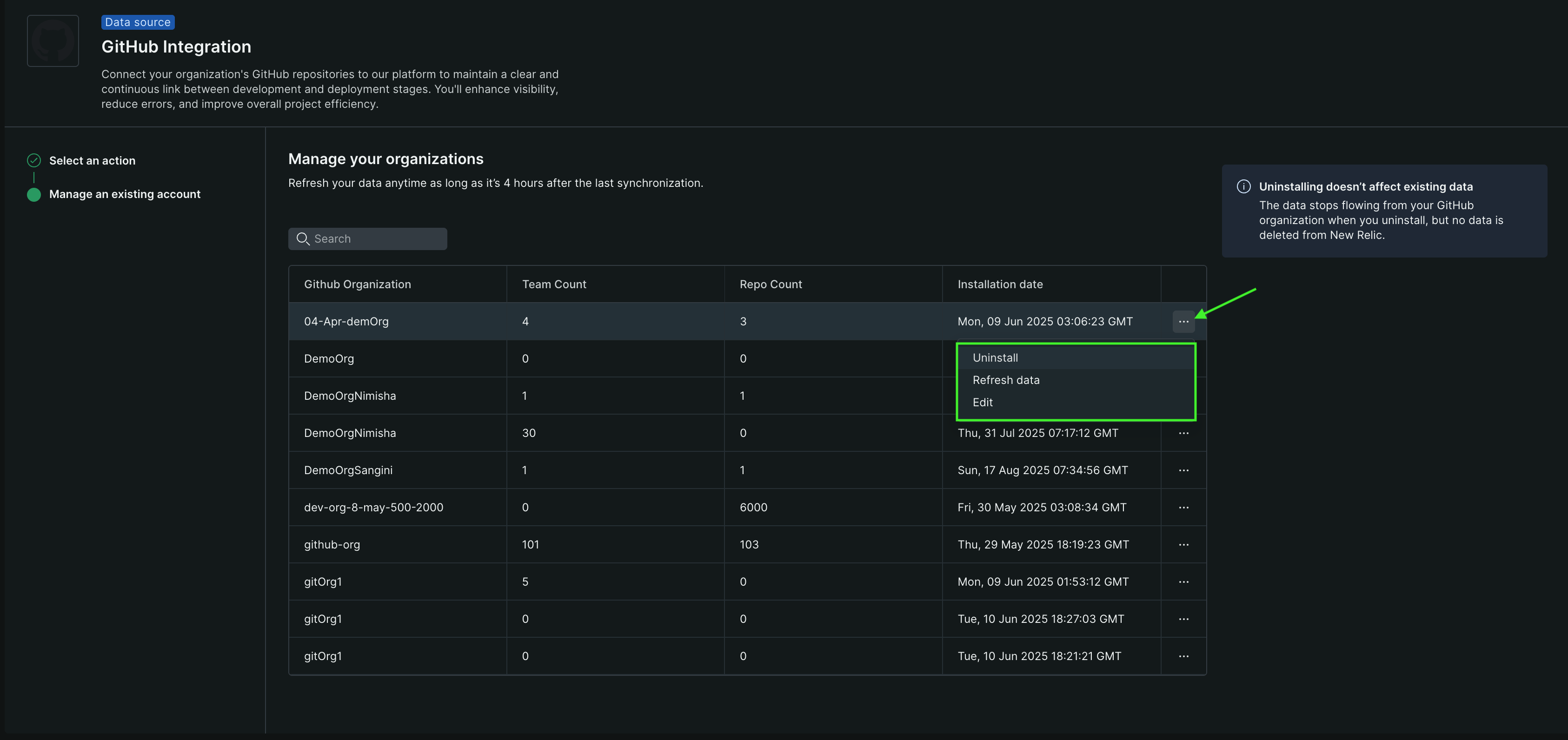
The Manage GitHub integration screen displays your connected organizations with their current sync status and data types.
Refresh data
The Refresh data option provides a streamlined way to update your GitHub data in New Relic.
To refresh data:
From the Manage GitHub integration screen, locate your organization.
Click Refresh data next to the organization that you want to update, and then click Continue.
On the Refresh Data step, click Sync on demand.
The system will then validate your GitHub permissions and organization access, fetch only new or changed data since the last sync, process and map the updated data according to your selected data types, and update the integration status to reflect the latest sync timestamp and data counts.
What gets refreshed:
- Teams and their membership
- Repository changes (new repos, archived repos, permission changes)
- Updated team ownership through custom properties
Dica
Refresh frequency: You can refresh data as often as needed. The process typically takes a few minutes depending on the size of your organization and selected data types.
Edit integration settings
Use the Edit option to modify your integration configuration after initial setup. You can adjust which data types are synchronized between GitHub and New Relic, as well as the selection of which teams are in sync.
To edit the GitHub integration:
From the Manage GitHub integration screen, locate your organization.
Click Edit next to the organization that you want to update and then click Continue.
On the Edit Integration Settings step, adjust your selections as needed.
Click Save changes to apply your updates.
What happens during edit:
- Current data remains intact during configuration changes. If your selection of teams to sync is now different, the previous selection will not be deleted from New Relic, but it will be without synchronization with GitHub. You can delete these teams in the Teams capability.
- New settings apply to subsequent syncs
- You can preview changes before applying them
- The integration continues running with previous settings until you save changes
Set up automatic team ownership
You can auto-assign GitHub repositories to their teams by adding teamOwningRepo as a custom property in GitHub.
Create the custom property at the organization level and assign a value for the custom property at the repository level. Additionally, you can set up a custom property for multiple repositories at the organization level simultaneously.
Then, in New Relic Teams, enable the Automated Ownership feature, making sure to use team as the tag key.
Once this is set up, we'll automatically match each repo with its correct team.
For more information on creating custom properties, refer to the GitHub documentation.
Uninstall the GitHub integration
Uninstalling the GitHub integration stops data synchronization from the selected organization. You will be given the option to either preserve or delete the previously imported data within New Relic.
To uninstall:
From the Manage GitHub integration screen, locate the organization you want to uninstall and click Uninstall.
In the confirmation dialog, select whether you want to Keep the data or Delete the data.
Review the details and click Uninstall organization to confirm.
You'll see a success message confirming the uninstallation.
Importante
Data retention after uninstall: Data that is kept will no longer be synchronized with GitHub and can be manually deleted later within the New Relic platform (e.g., via the Teams capability).