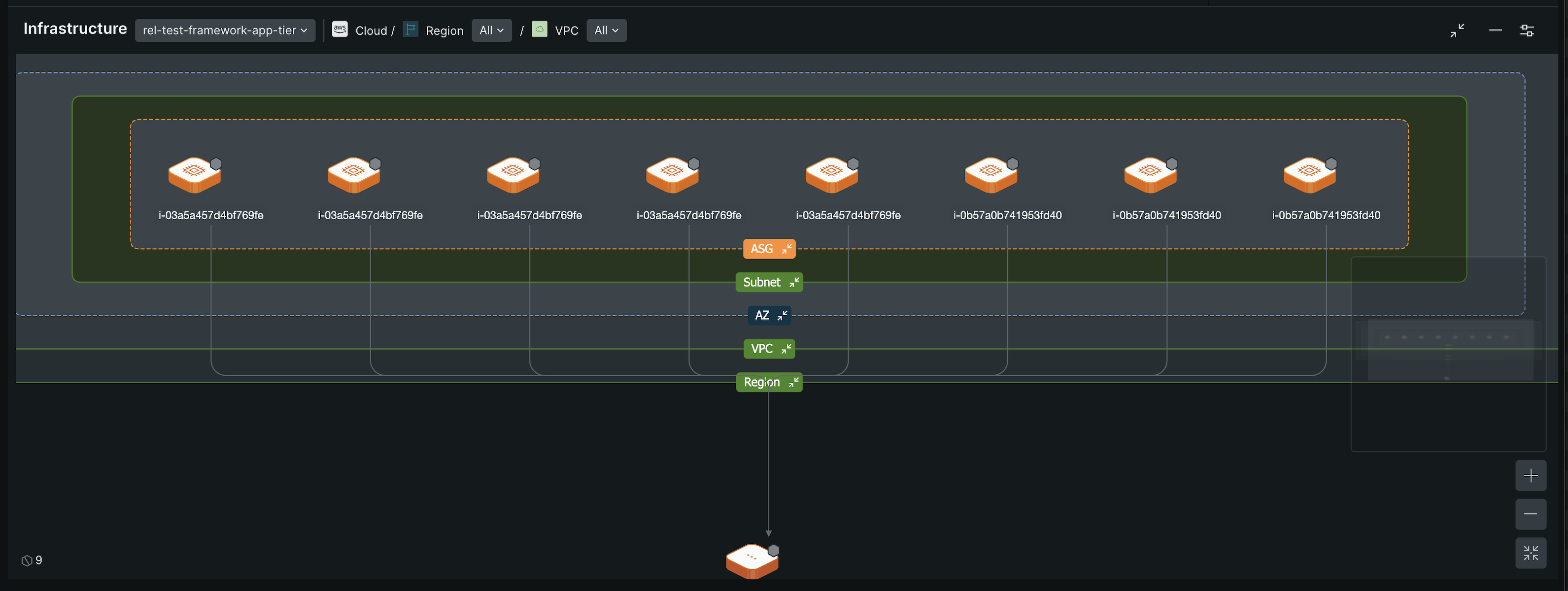
Maps provides a unified and integrated view of your cloud estate, allowing seamless navigation and exploration of services and infrastructure. It integrates tracing, infrastructure, and performance data into a cohesive experience, addressing limitations of the Service map experiences.
Comprehensive visualization: View your entire digital landscape that shows all your services and infrastructure in one place. This visualization helps you quickly grasp complex architectures and make informed decisions about your cloud environment.
Automatic Resource Detection: With auto-discovery, Maps automatically identifies new resources and their relationships. This feature ensures your data is always current, reducing the time and effort needed to manually update and track changes in your cloud estate.
Service map (old) vs. Maps
Feature | Service map | Maps |
|---|---|---|
Focus | View one service at a time. | Gain a comprehensive view of multiple services, enhancing overall system understanding. |
Navigation | Navigate through individual services | Explore the entire cloud topology, including AWS resources, from a holistic view of the entities and their relationships. |
Grouping | Not available | Organize entities in multi-level grouping for simplified visualization and management. |
Infrastructure visibility | Limited context on infrastructure. | Directly inspect AWS and cloud resources, providing deeper insights into infrastructure support. |
Service relationships | See direct interactions between services. | Understand complex interactions for better dependency management. |
Health status summary | Basic health indicators | Filter services by health status to focus on critical, degraded, or uninstrumented services. |
Customization | Basic appearance settings | Tailor map view and edge styles to suit specific needs, improving clarity and focus. |
Prerequisites for Maps access
To experience the new map features, you must opt in for one of the following product capabilities. Opting in automatically enables Maps.
Map components
Get familiar with the components of Maps, which visualize the relationships within your services, resources, and teams, and show their health status.
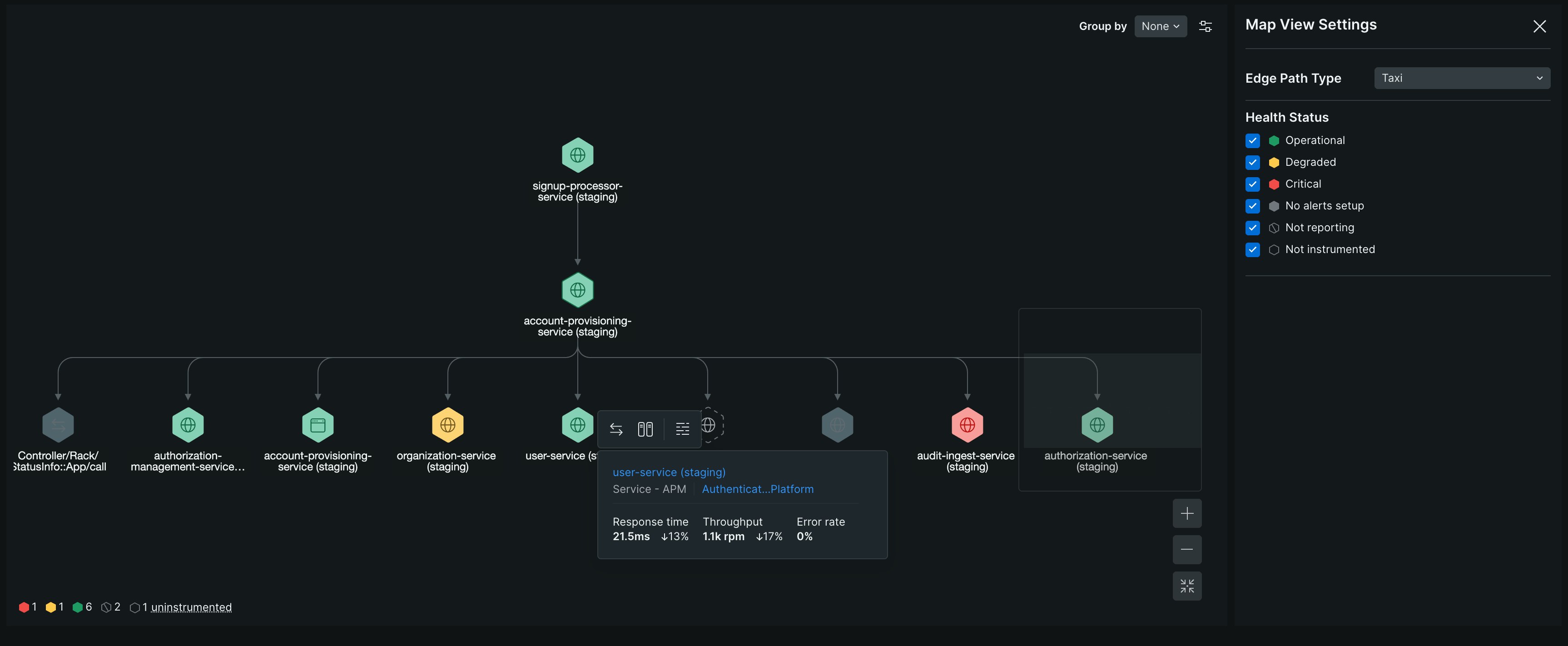
one.newrelic.com > All capabilities > APM & Services: Maps view.
Component | Description |
|---|---|
Focal node | The entity from which you open the map. It serves as the reference point for visualizing relationships with other entities one step away. To view comprehensive details about the entity, point to the focal node and select the info icon. |
Connected nodes | The connected nodes are entities that have a direct relationship with the focal node. They appear one step away from the focal node.
|
Edges | Edges illustrate the inbound and outbound relationships between nodes. Point to an edge to view the relationship type and the data flow direction. You can change the edge style from the Map View Settings panel by using the Edge Path Type drop-down. |
Zoom in, Zoom out, and Center and reset zoom | Adjust the map view by zooming in and out or centering and resetting the zoom level. If nodes are outside the main viewport, the map thumbnail provides a compact overview to help navigate and locate the nodes. |
Health status summary | The Health status summary provides a quick overview of node statuses, using color-coded indicators and counts to help you identify areas requiring attention. You can instrument uninstrumented nodes directly from the status summary. |
Service level availability (SLA) indicator | The SLA indicator appears if the availability percentage of the node drops below the SLA threshold. Pointing to the indicator displays the current availability percentage. To learn more about the SLA, refer to Service level availability commitment. |
Clusters | Cluster is the logical grouping of nodes that simplify the map by consolidating related nodes. A cluster forms when at least 10 nodes:
|
Nodes
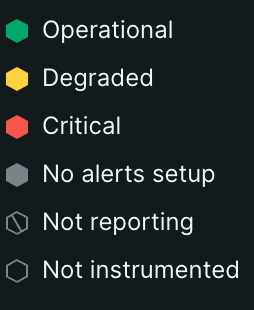
Nodes represent all types of entities in the map. To visually distinguish between different types of nodes, and recognize their health status and SLA, the map uses the following icons:
| Node | Type |
|---|---|
 | Services, micro-services, and internal code |
 | Data and integrations |
 | External services |
 | Mobile applications |
 | Browser applications |
 | Video player |
 | Degraded node |
 | Critical unknown node |
 | Unreporting node |
 | Uninstrumented node |
 | Node with dropped SLA indicator |
Map entry points
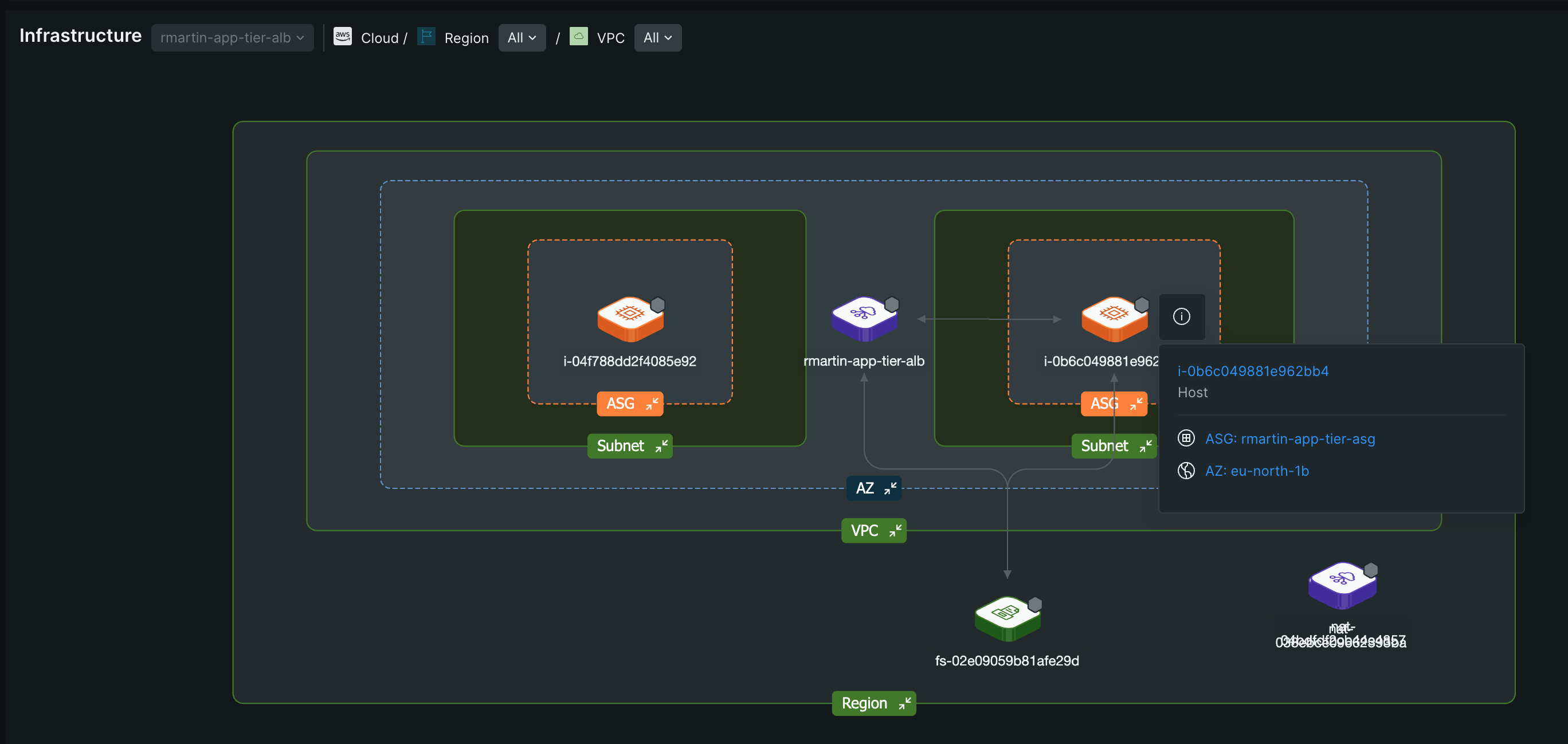
Maps provides a consistent mapping experience accessible through various entry points. Depending on the type of entity you select to explore, separate views are available to show services, teams, infrastructure resources, entity relationships in a workload, or dynamic data flows. This unified approach offers clear insights into service interactions, infrastructure dependencies, team operations, and data flows.
Importante
Maps with Distributed tracing and Auto-Discovery provides unified relationships between entities. While Maps remains functional even if you haven't enabled Distributed tracing or Auto-Discovery, enabling these features is recommended for a more impactful and consistent experience.
Use Maps
With the features and components of Maps, you can explore and manage your cloud environment in the following ways: